Rules and automation
Automate emails, alerts, field updates and milestones with rules, keep shared values in universal tables, and set up case milestones.
This page needs administrator access. Rules/Alerts and Case Milestones are in the Admin menu.
Rules let Agnos do routine work for you: email a reminder before a deadline, alert the case team when something changes, update a field or complete a milestone. Case milestones define the steps each type of case goes through.
Rules
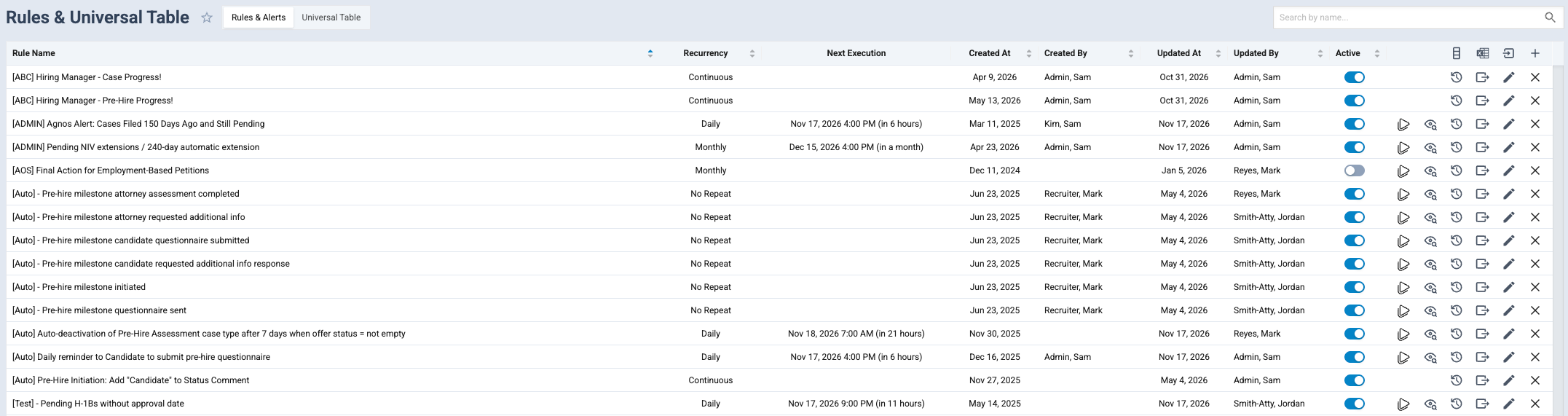
Open Rules/Alerts from the Admin menu. The page has two parts: Rules & Alerts and Universal Table.
The rules list shows each Rule Name, its Recurrency, Next Execution, who created and updated it, and whether it is Active. From a row you can Preview what the rule would find, see its History, run it now, Export Rule, edit or delete it. Import Rule loads a rule exported from another environment.
Create a rule
- Click +.
- Give it a Name and choose its Type: System Mail, Alert or Case Request. Add a Description so others know what it does.
- Choose when it runs under Recurrency: No Repeat, Hourly, Daily, Weekly, Monthly or Continuous. For scheduled rules, set the day and Start Time (UTC). A Continuous rule runs when the Fields and Milestones to Watch change.
- Under Conditions, describe which records the rule applies to. Filters inside a group must all match; a record matches if any group matches. The Conditions Guide explains the operators, such as Equals, Contains, Empty and Between.
- Under Actions, click Add Actions and choose what happens: Send Email, Update Field, Complete Case Milestone or Create Banner (and Workday actions if Workday is connected).
- Tick Skip if no results so nothing is sent when no record matches.
- Optionally turn on Request Approval and choose who approves with Add Approvers.
- Save, then use Preview to check the records it finds before you make it Active.
Running a rule by hand updates all the records it finds. Preview it first.
Notifications by email
The Send Email action uses a Message Template from Email Templates, or your own Subject and Message. Choose the Recipients. With Consolidated Report Email on, one email listing all the matching records goes to all recipients; with it off, each recipient gets a separate email with only their records. Attach Report as File adds the list as a file.
Many of Agnos's notifications, including IntraLCA filing and posting emails, are sent through rules and email templates, so you can change who receives them and what they say.
Universal Table
A universal table is a named list of values you want to reuse, such as fee amounts or office addresses. Each item has a name, label, type and value. Values in universal tables can be used as Universal variables in email templates, so you update a value once instead of in every template.
To create one, open Universal Table, click +, and give it a Table Name and Description, or Copy existing.
Case milestones
Milestones are the steps a case goes through, such as "Documents received" or "Filed with USCIS". Your team checks them off on the case. See Milestones and status.
- Open Case Milestones from the Admin menu. The page is titled Case Milestones Management.
- On the left is the firm's list of milestones. Click add new milestone to create one with a Name and Description.
- Choose a case type in Select a case type....
- Drag milestones from the left list into the case type's Case Milestones, in order, and set a Duration for each.
Milestone actions
Each milestone on a case type can have Actions that tell the team what to do to complete it: fill in a Field, Upload a document, Send Message, give Matter Access, send a Form or generate a Doc Template. If you add none, Agnos uses its default milestone behavior.
To check a milestone automatically, use a rule with the Complete Case Milestone action. LCA filing milestones are checked automatically as each LCA moves through FLAG (see IntraLCA overview).
Related
Last updated Nov 17, 2026
Still need help?
- Ask your firm's Agnos administrator. They manage users, permissions, forms and settings for your firm and can fix most access problems right away.
- Use Help in Agnos. Open your profile menu and choose Help to email your firm's support contact.
- Contact Agnos support at support@agnos.global. Say which page you were on and what you expected to happen. Never send passwords, and send client documents only through Agnos itself.