Action Items
See what needs doing on your companies, matters and cases, filter by due date, and complete or reopen items.
Action items are dated to-dos attached to a company, matter or case. They help you see at a glance what is overdue, what is due today and what is coming up across all of your clients.
Action items are a module your firm turns on. If you don't see the clipboard icon in the top bar, your firm doesn't use them yet; ask your firm's administrator.
Where action items come from
Each item shows its source:
- Milestone. Every case milestone has a matching action item, with the milestone's due date. Completing the item completes the milestone, and checking off the milestone completes the item.
- Message (AI). If your firm turns this on, Agnos reads incoming client emails and creates an item when the firm needs to do something, such as send documents or answer a question. Replies in the same email thread are added to the same open item.
- Manual. Items your team creates from a message (see Create an action item from a message).
Who sees an item
An item is assigned to the firm users selected on its record, such as the attorney, and on the records above it. For example, an item on a case goes to the users selected on that case, on its matter and on its company. If nobody is selected, the person who created the item is the assignee.
When someone is added to or removed from a record, the open items on that record are updated to match.
Managers and administrators can switch between Mine (items assigned to them) and All (every item they have access to).
Open the Action Items page
Click the clipboard icon (Action Items) in the top bar, or View all on the dashboard widget. Click Back to dashboard to return.
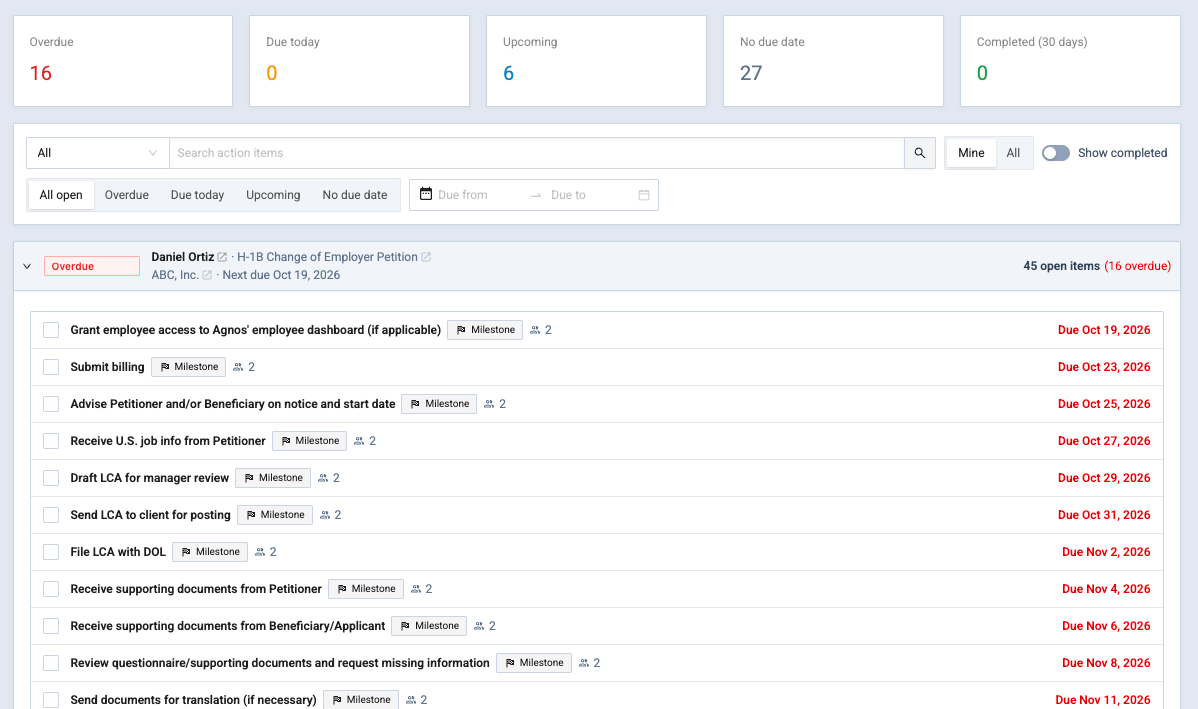
At the top, summary cards count your open items: Overdue, Due today, Upcoming, No due date and Completed (30 days). Click a card to show just those items.
Below, items are grouped by record: company, matter and case. Click a record's name to open it in Browse / Edit in a new tab.
Due dates and overdue items
Due dates count calendar days, including weekends and holidays.
- Overdue: the due date has passed.
- Due today: due today.
- Upcoming: due within the next few days. Your firm sets how many (7 unless it's changed).
- No due date: the item has no due date, so it's never overdue. These sort last.
For items created from messages, the due date is a set number of days after the email arrived. Your firm's administrator chooses the number of days in Settings.
Find items
Use the filter bar to narrow the list:
- Search: in the drop-down, choose what to search by (All, Case type, Matter name, Matter type, Company, Message thread or Milestone), then type or pick what you're looking for in the box next to it.
- Status: All open, Overdue, Due today, Upcoming or No due date.
- Due from / Due to: show items due in a date range.
- Show completed: include completed items.
Complete an item
- Click the check box next to the item (Complete item), or open the item and click Complete.
- If the item is linked to a milestone, Agnos opens the milestone's completion form, as it would on the case. Fill it in and click Submit.
The item shows who completed it and when. To undo, click the check box again (Reopen item), or open the item and click Reopen.
Items completed automatically show how: by a rule, or through their milestone.
Item details
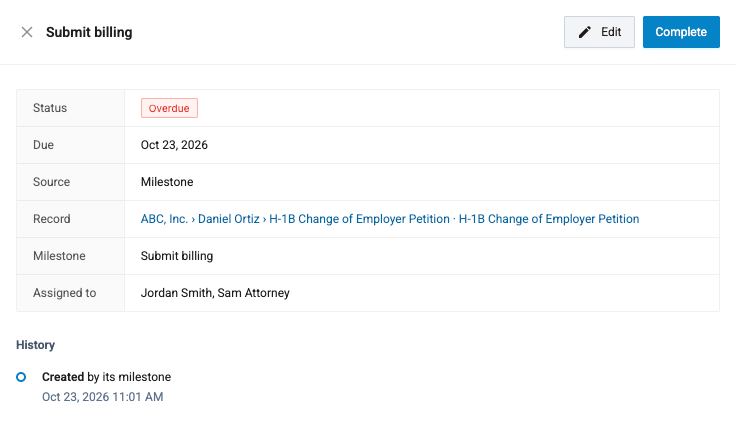
Click an item's title to open its details. You'll see its Status, Due date, Source, Record, Description, linked Milestone or Message thread, who it's Assigned to, and its history.
From here you can:
- Edit the title, description, due date or linked milestone. Manual items can be edited by their creator and by managers. For milestone items, only the due date can be changed.
- Delete a manual item (creator and managers).
- Dismiss an item created from a message when the AI got it wrong and the message needs no action. Assignees and managers can do this.
- Click Open the record's messages to jump to the email thread.
Create an action item from a message
You create action items by hand from a company, matter or case message thread:
- Open the record in Browse / Edit and go to its messages.
- Click the three-dot menu on the message and choose Create action item.
- Enter a Title and, if you like, a Description. The Due date is filled in for you; change it if needed.
- On a case, you can choose a milestone under Completes milestone. Completing either one then completes both.
- Click Create.
In the message thread, messages linked to an item show Needs action or Done. Messages the AI checked and found nothing to do show No action.
Emails and reminders
- When items change. Depending on your firm's settings, assignees get an email when someone creates an item by hand, completes it or reopens it. When a rule completes many items at once, you get one email listing them rather than one per item.
- Daily summary. Your firm can send a daily email listing each person's open items under Overdue, Due today, Upcoming and No due date. Each item links straight to it in Agnos. Ask your firm's administrator if you'd like to receive it.
Related
Last updated Nov 17, 2026
Still need help?
- Ask your firm's Agnos administrator. They manage users, permissions, forms and settings for your firm and can fix most access problems right away.
- Use Help in Agnos. Open your profile menu and choose Help to email your firm's support contact.
- Contact Agnos support at support@agnos.global. Say which page you were on and what you expected to happen. Never send passwords, and send client documents only through Agnos itself.