Finding Your Way Around
A tour of the main menu, the search box and the tools along the top of every Agnos page.
Every Agnos page has the same frame: the main menu on the left, and a bar along the top with the search box, the timer and your profile.
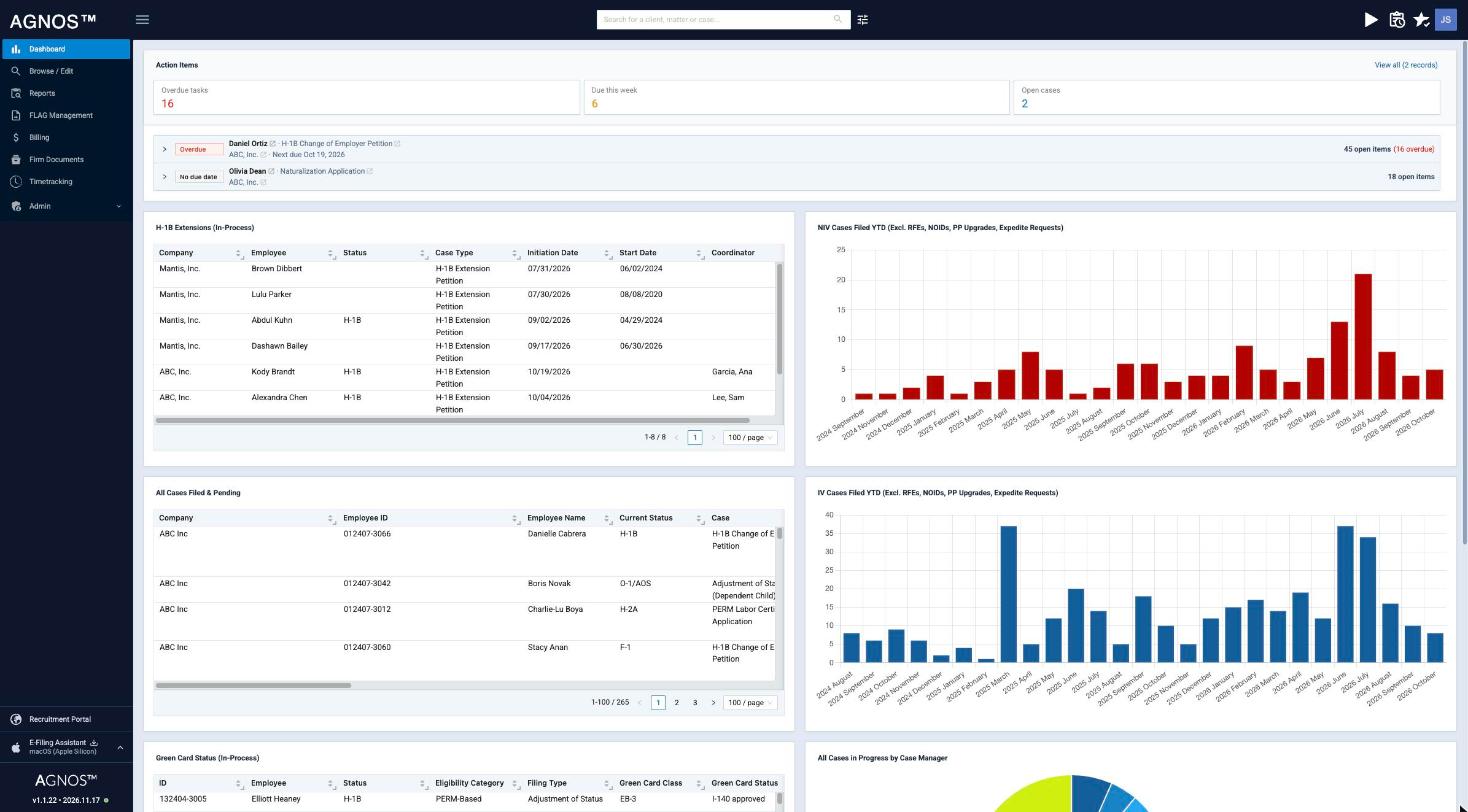
The main menu
The menu on the left takes you to each area of Agnos. What you see depends on your role and on which modules your firm uses, so your menu may be shorter than the list below.
| Menu item | What it's for | Who sees it |
|---|---|---|
| Dashboard | Your home page, with the widgets your firm set up for your role. See Your dashboard. | Everyone |
| Browse / Edit | Find and update companies, matters and cases, with their documents, questionnaires, milestones and messages. See Companies, matters and cases. | Everyone |
| Reports | Run and export reports. See Reports. | Everyone |
| FLAG Management | Track LCAs filed through FLAG. See the LCA overview. | Firms using IntraLCA, for users with IntraLCA access |
| Billing | Invoices and payments. See Invoices. | Firms using billing, for users with the Accounting permission |
| Firm Documents | Your firm's own shared files. | Users with the Firm permission |
| Timetracking | Your time entries. See Tracking time. | Firms using timetracking, for users with the Timetracking permission |
| Admin | Settings, users and roles, templates, forms and other configuration. See Users and roles and Settings. | Administrators |
Below the menu you may also see:
- Recruitment Portal, which opens the recruitment area, if you have the Recruiter permission.
- IntraLCA Portal, which opens the IntraLCA portal, if your firm uses IntraLCA and you have access to it.
- E-Filing Assistant, which downloads the desktop app for your computer, if your firm uses e-filing and you have the E-Filing Assistant permission. Use the arrow next to it to pick a different operating system.
To make more room on screen, click the menu icon at the top left (Collapse sidebar). Click it again to expand the menu. Agnos remembers your choice.
If a menu item you need is missing, ask your firm's administrator. Menu items appear based on your role's permissions and the modules turned on for your firm.
Search for a client, matter or case
The search box at the top of the page (Search for a client, matter or case...) finds records anywhere in Agnos.
- Click the search box and start typing a name, number or other detail.
- Results appear in three groups: Clients, Matters and Cases. The words you typed are highlighted.
- Click a result. It opens in Browse / Edit in a new browser tab, so you keep your place.

Choose which fields are searched
If you're a firm user, a settings icon next to the search box lets you choose which fields the search looks in.
- Click the settings icon next to the search box.
- Under Search Fields, open Company, Matter or Case and tick or untick fields.
- To add a field that isn't listed, click Add More, find it with Search by field name and tick it. Click Close when you're done.
Your choices apply only to your own searches.
The top bar
From left to right, the top bar can show:
- Timer. If you track time, the play button starts and stops your work timer (Start work / Finish work). While it runs, the bar shows the case you're working on; if it says No case selected, click Click here to select a case to pick one. See Tracking time.
- Uploads. Shows the progress of files you're uploading.
- Action Items. The clipboard icon opens your action items, if your firm uses them.
- Shortcuts. The star icon lists quick links to pages you use often. Click Manage Shortcuts to change them.
- Your picture. Opens your profile menu (see below).
Your profile menu
Click your picture in the top-right corner to open your profile menu:
- Profile shows your name and email. Here you can change your password (Change Password) and manage Passkeys. If your role allows it, you can also change your name (Update Name).
- My IntraLCA alerts appears if your firm uses IntraLCA and you have access to it.
- Help opens a new email to your firm's support contact, with the subject "Agnos Support". Your firm's administrator chooses this address in Settings.
- Logout signs you out. See Signing in and out.
Related
Last updated Nov 17, 2026
Still need help?
- Ask your firm's Agnos administrator. They manage users, permissions, forms and settings for your firm and can fix most access problems right away.
- Use Help in Agnos. Open your profile menu and choose Help to email your firm's support contact.
- Contact Agnos support at support@agnos.global. Say which page you were on and what you expected to happen. Never send passwords, and send client documents only through Agnos itself.