Filing with FLAG
Connect your firm's FLAG account, file LCAs with DOL from Agnos, track their status and fix filing errors.
Agnos files your LCAs with the Department of Labor's FLAG system for you. A filing worker signs in to FLAG with your firm's login.gov account, enters the ETA-9035, and reports every step back to Agnos. You follow everything on the FLAG Management page.
Before you start: connect a FLAG account
An administrator connects the firm's FLAG account once.
Connecting FLAG accounts and changing IntraLCA settings needs administrator access.
- Go to Settings and open the IntraLCA tab.
- Under FLAG accounts, click Add an account.
- Enter a Label (a name you'll recognise), the login.gov email, the Password and the Authenticator key. The authenticator key is the text key login.gov shows next to the QR code when you set up an authentication app. Agnos needs it to sign in without a person.
- Tick Use as the default account if this is the account most filings should use.
- Save, then open the account's Actions menu and choose Test login. The Last test column shows Signed in when it works.
Passwords and authenticator keys are stored encrypted, used only to sign in to FLAG, and can't be read back. To change them, use Replace secret in the Actions menu and fill in only what changed. Show code displays the current authenticator code when someone needs to sign in to FLAG by hand; each code shown is recorded.
Trust the worker's browser
login.gov may refuse a sign-in from a browser it doesn't recognise. To avoid that, trust the worker's browser once:
- In FLAG accounts, open the account's Actions menu and choose Trust device.
- A window shows the worker's browser. Click Log in in FLAG and sign in with the account's email and password.
- When login.gov asks, type the authenticator code shown in the window.
- On the code page, tick Remember this browser before you submit.
- Wait. The window finishes by itself once FLAG opens, and says The device is trusted.
The Device column shows whether the account's browser is trusted.
Turn filing on
Also on the IntraLCA tab, an administrator sets:
- Filing in FLAG: while this is off, no LCA can be queued for FLAG.
- FLAG run mode: Dry run walks the steps and sends nothing, Sandbox uses FLAG's test environment, and Production files with DOL for real. Agnos asks you to confirm before switching to production.
- FLAG stops after: Draft and submit, or Draft only: never submit if your firm wants to submit every application in FLAG itself.
- Auto-file default: the starting answer for filing automatically once the notice is posted.
- Posting days, Holidays and Time zone for the posting window, and the Law Firm FEIN used for the attorney or agent when the attorney's user has none.
File an LCA
The notice of filing must be posted before the LCA is filed, as DOL requires. Agnos follows that order for you.
- Open the LCA in Browse and check that nothing is listed as missing above the form.
- In the LCA's IntraLCA menu, choose FLAG > Initiate….
- Choose how to file:
- Create the FLAG draft and file it when the notice is posted (the usual choice).
- Create the FLAG draft only; I will file it myself.
- File now (the notice must already be posted).
- If your firm has more than one FLAG account, pick the account to use.
- Optionally add Additional email recipients to hear about this LCA.
- Click Initiate.
Agnos checks the form first. If something is wrong, The LCA wasn't queued lists what to fix. Otherwise the LCA moves to Queued for filing, the worker creates the draft in FLAG, and the posting request goes to the employer (automatically if your firm has Email auto-send on). Once the notice is posted, the draft is filed.
While an LCA is waiting, File sends a drafted LCA now that its notice is posted, and Cancel filing returns it to draft.
You can choose your own default in My IntraLCA alerts under My preferences: Follow the firm's default, Yes, or No, I will file it myself.
Track filings in FLAG Management
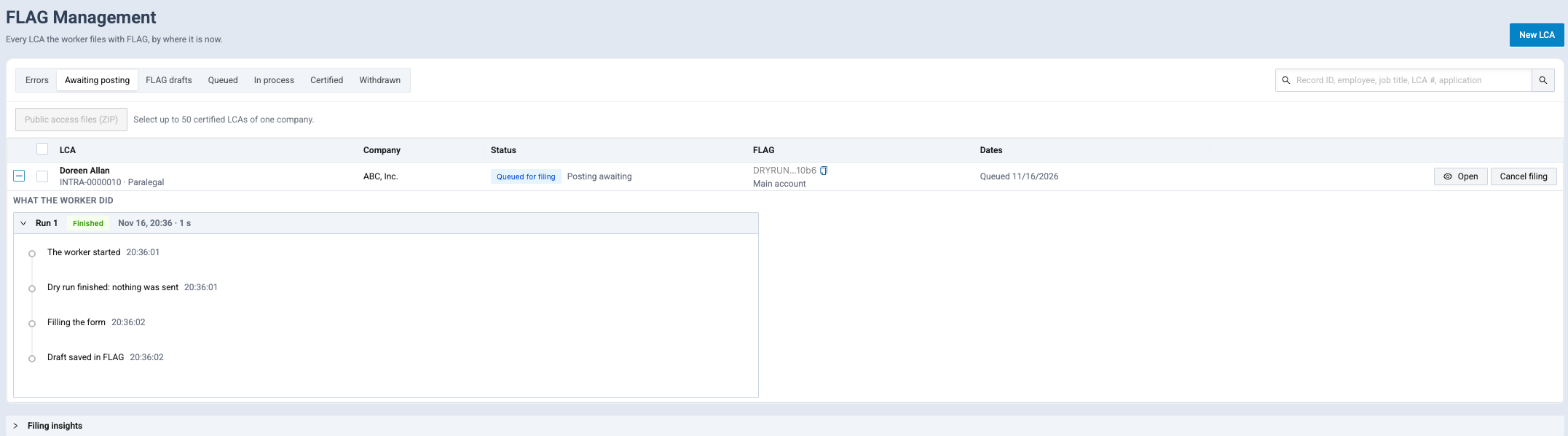
Open FLAG Management in the side menu. It lists every LCA the worker files with FLAG, for the companies you can see. Switch between Errors, Awaiting posting, FLAG drafts, Queued, In process, Certified and Withdrawn, and search by record ID, employee, job title, LCA number or application.
Each row shows:
- LCA: the employee, form, record ID and job title, with a Hold tag for legal holds.
- Status: the LCA status, the posting, any withdrawal in FLAG and the last error.
- FLAG: the DOL case number once there is one, the FLAG application ID, the account used and Open in FLAG.
- Dates: when it was queued, submitted and withdrawn.
- Actions: Open, Retry, File or Cancel filing, depending on where the LCA is.
Expand a row to see what the worker did in each run, with screenshots of any page where it stopped. Filing insights at the bottom shows charts of your filings.
Case numbers, decisions and the certified LCA
After submission, Agnos checks FLAG regularly. When DOL gives the case number, it appears on the LCA and the in process ETA-9035 is saved to the LCA's documents. When DOL certifies or denies the LCA, the status updates and the certified LCA is downloaded and saved to the case's documents for you, along with a fresh Public Access File.
To check sooner, choose FLAG > Check FLAG for decisions on the LCA. The status updates in a minute or two.
Alerts
Choose My IntraLCA alerts from your profile menu to decide what you hear about.
- Send me alerts turns your alerts on or off.
- Companies: All the companies I can see or Only these.
- About: All LCAs, LCAs I created or LCAs I submitted.
- Email me when an LCA is: posted, in process, certified, withdrawn, posting rejected or denied.
- Daily report includes: the categories for your end-of-day report, sent at your Report time (HH:mm) in your Time zone. The report isn't sent when nothing changed.
Click Save.
Fix filing errors
When a filing stops, the LCA shows Error and the reason. Click See how to fix for the details, fix the LCA, then click Retry. A tag Needs a person means the worker won't try again by itself.
| Message | What to do |
|---|---|
| FLAG could not be reached | FLAG may be down or busy. Retry later. |
| FLAG refused the login or the password | Check the account in Settings > IntraLCA, use Replace secret, then Test login. |
| FLAG refused the authenticator code | Replace the authenticator key with the one from login.gov. |
| login.gov doesn't recognize the worker's browser | Use Trust device on the account, then retry. |
| The FLAG login was busy | Another run was using the account. Retry in a few minutes. |
| FLAG's OES wage calculator gave another wage than the one sent | The details show the wages FLAG offers. Correct the wage on the LCA and retry. |
| FLAG marks parts of the form as missing or wrong | The details show FLAG's own messages by section. Fix those fields and retry. |
| FLAG did not confirm the submission | Look at the application in FLAG before trying again, so you don't file twice. |
In Production run mode a submitted filing can't be taken back from Agnos. Use Dry run or Sandbox while you're testing.
Related
Last updated Nov 17, 2026
Still need help?
- Ask your firm's Agnos administrator. They manage users, permissions, forms and settings for your firm and can fix most access problems right away.
- Use Help in Agnos. Open your profile menu and choose Help to email your firm's support contact.
- Contact Agnos support at support@agnos.global. Say which page you were on and what you expected to happen. Never send passwords, and send client documents only through Agnos itself.