Settings, setup and imports
Configure your firm's general settings, branding, modules and integrations, finish setup, and import data from spreadsheets.
This page needs administrator access. Settings and Import Management are in the Admin menu.
How Settings works
Open Settings from the Admin menu. Settings are grouped in tabs, such as General, Email, Employee Portal, IntraLCA, QuickBooks, Greenhouse, Workday, Webhook, Business Groups, E-Filing Assistant and Document AI. Some tabs appear only when the matching feature is on.
One Submit button saves every tab. A count next to it shows how many changes aren't saved yet, and each tab with changes says so when you point at it. Nothing takes effect until you click Submit.
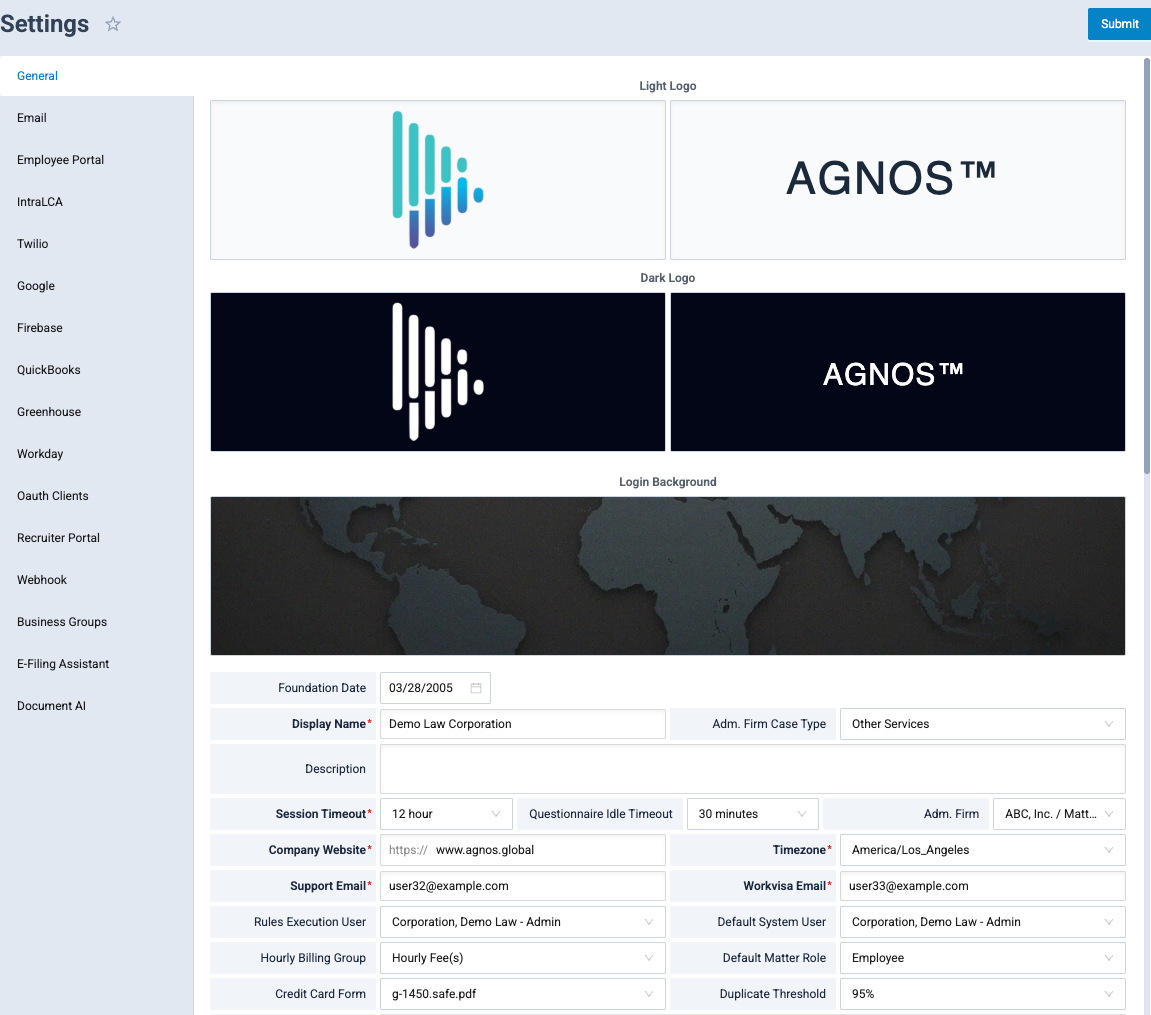
General
The General tab holds your firm's basic details:
- Display Name and Description.
- Session Timeout: how long a user can be idle before being signed out, from 5 minutes to No expiration.
- Timezone.
- Support Email (required): where the Help link in everyone's profile menu sends email, and the address shown in "If you have any questions…" lines. Use a mailbox your team watches. See Getting help.
Branding
Upload your Light Logo, Dark Logo and Login Background (the image behind the sign-in page).
- Click or drag an image onto the upload area. Images can be up to 5 MB.
- The new image is tagged Not published, click Submit.
- Click Submit to publish it.
Every upload is kept, so you can switch back to an earlier version later, or delete versions you no longer need.
Modules and feature flags
Under Feature Flags you turn optional parts of Agnos on or off for the whole firm, including Billing, Timetracking, Check Requests (with billing), Action Items, IntraLCA, E-Filing, AI Report Assistant, Portal Tours and Short Questionnaire Links.
When Billing or Timetracking is off, its menus and role permissions are hidden for everyone. See Invoices and Tracking time.
Maintenance is also a feature flag. Leave it off unless you mean to put the site into maintenance.
IntraLCA
The IntraLCA tab, shown when IntraLCA is on, holds the firm's LCA settings: FLAG accounts, posting days and holidays, email auto-send, auto-filing, retention of old LCAs and DOL notices, and the FLAG run mode. See Filing with FLAG.
Integrations
Integrations with other systems are set up on their own Settings tabs.
- QuickBooks: fill in the connection details, click Authorize and sign in to QuickBooks. After that you can map contact fields, custom fields and departments, and turn on Daily Time Sync.
- Greenhouse and Workday: connect your recruiting or HR system.
- Webhook and Oauth Clients: for connections your IT team builds to Agnos.
Connection keys and secrets entered here give access to your data. Only enter them on the Settings page, never in emails or case notes.
Finish setting up
When a new environment isn't fully configured, a banner at the top of every page says This environment is not fully set up yet with a Finish setting up link. Administrators see a checklist of Required and Optional items, such as Firm details, Email, Text messages, Sign-in codes, QuickBooks, Document AI and IntraLCA.
- Click Open settings on an item and fill in that service in Settings.
- Come back and run its test, for example Send test email or Text me a test code. Tests go to your own email and phone.
- Use Dismiss for optional items you don't need.
- When every required item is done, click Finish.
Each item shows its state: Done, Dismissed, Needs a test, Not set up or what is missing.
Import data from a spreadsheet
Import Management updates field values on matters from an Excel file (.xlsx or .xls).
- Open Import Management from the Admin menu.
- Choose the company in Select a Company....
- Choose a mapping in Select a mapping, or create one. A mapping links each spreadsheet Column Name to an Agnos Field, with a Date Format. You can Copy From an existing mapping.
- Upload the file.
- Review each change: Matter ID, Field Name, System Value, Imported Value and Status.
- Click Import Data and confirm.
If something went wrong after importing, use Undo Import. The import list keeps each file, so you can Download Original or Export to Excel later.
Related
Last updated Nov 17, 2026
Still need help?
- Ask your firm's Agnos administrator. They manage users, permissions, forms and settings for your firm and can fix most access problems right away.
- Use Help in Agnos. Open your profile menu and choose Help to email your firm's support contact.
- Contact Agnos support at support@agnos.global. Say which page you were on and what you expected to happen. Never send passwords, and send client documents only through Agnos itself.