Your Dashboard
What the widgets on your dashboard show and how to use them.
The Dashboard is the first page you see after signing in. It gathers the things you need to keep an eye on: your action items, reports, charts and recent activity.
Your firm's administrator designs the dashboards and chooses which ones each role sees, so your dashboard may look different from a colleague's.
Switching between dashboards
If your role has more than one dashboard, each one appears as a tab at the top of the page. Click a tab to switch. Agnos remembers the last tab you opened and shows it next time.
Widgets you may see
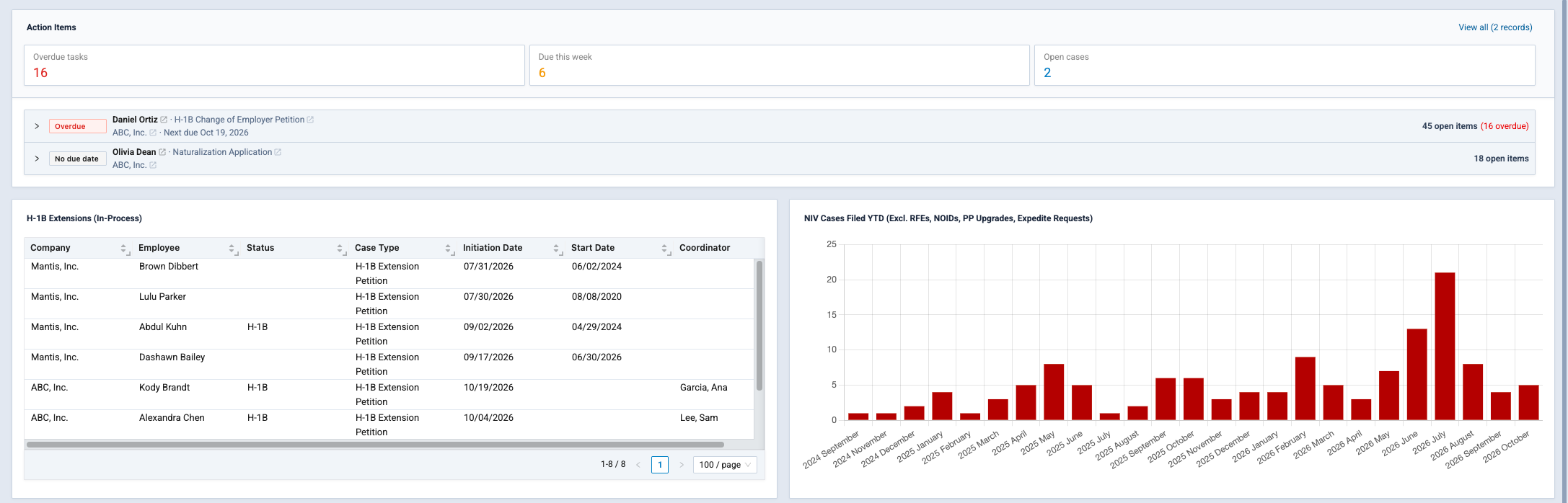
Action Items
A summary of the action items assigned to you:
- Overdue tasks: items past their due date.
- Due this week: items due today or in the next few days. If your firm uses a different window, the card says so (for example, "Due in 14 days").
- Open cases: the cases with open items.
Below the cards, items are grouped by company, matter and case. Click an item to see its details and complete it right from the dashboard. Click View all to open the full Action Items page.
Reports and tables
A report widget shows the results of one of your firm's saved reports, already filtered for the dashboard. Results refresh each time you open the page. For more on reports, see Reports.
Charts
Charts summarize your firm's data, for example cases by status or type. Hover over a bar or slice to see its value.
Recent Activities
A list of the latest changes made in Agnos, newest first. Each row shows the Date and the Activity: who did what, and to which record. Click the record's name to open it in Browse / Edit in a new tab.
Notifications
Alerts about your companies, matters and cases, with the Date, the Company/Matter/Case they relate to and a Description. Click the record to open it in a new tab. When you've dealt with an alert, click the check mark and confirm to acknowledge it.
Fee Calculator
If your firm adds it, the fee calculator estimates the cost of a filing. Choose the services and quantities, and the Cost Estimate Summary totals Legal Fees, Govt / Filing fees, Incidental costs and Premium Processing.
IntraLCA widgets
Firms that use IntraLCA can add LCA work queues and charts. See the LCA overview.
Want a different widget, report or chart on your dashboard? Ask your firm's administrator. Dashboards are set up per role.
Related
Last updated Nov 17, 2026
Still need help?
- Ask your firm's Agnos administrator. They manage users, permissions, forms and settings for your firm and can fix most access problems right away.
- Use Help in Agnos. Open your profile menu and choose Help to email your firm's support contact.
- Contact Agnos support at support@agnos.global. Say which page you were on and what you expected to happen. Never send passwords, and send client documents only through Agnos itself.