Milestones and status
Track a case's progress with milestones, notes in the case history, and active or inactive status.
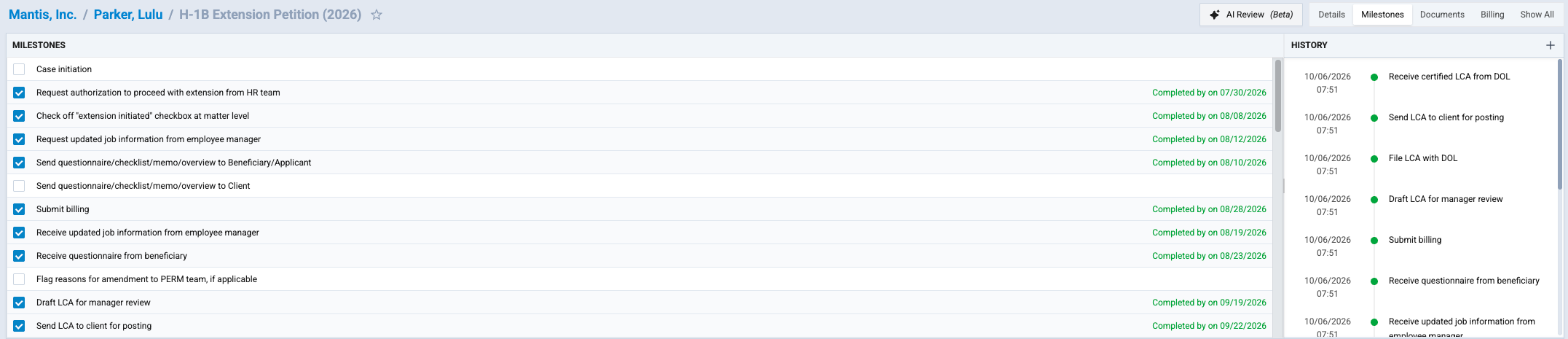
Milestones are the steps a case goes through, such as "documents received" or "filed". Your firm defines them per case type, so each case starts with the right checklist.
Open a case's milestones
- Open the case in Browse / Edit.
- Click Milestones in the switch at the top right of the case, or Show All to see milestones with the rest of the case.
The Milestones tab appears only when the case type has milestones. If you don't see it, the case type has none, or your firm hasn't enabled it for your role.
Each milestone shows:
- Completed by name on date, once it's checked.
- Due by date when it has a due date and isn't done yet. Overdue dates are shown in red.
Complete a milestone
- Click the milestone (or its checkbox).
- In Milestone Completion, enter the Date completed.
- Complete any other steps the milestone asks for. Depending on how your firm set it up, a milestone can ask you to upload a file, send a message to the client, give the person access to the employee portal (Grant Matter Access) or add a billing item.
- Click Submit.
To undo a milestone, click it again and confirm. If a billing item is linked to the milestone, Agnos warns you that unchecking it will remove the billing item.
Checking and unchecking milestones needs edit rights on an active case. Inactive cases show their milestones read-only.
Milestones checked automatically
Some milestones are checked by Agnos itself. LCA cases, for example, get milestones such as [intraLCA] Prepared, [intraLCA] Submitted and [intraLCA] Certified, which are checked as the filing reaches each step. You don't need to tick these yourself. See LCA filing overview.
Case history
The History panel next to the milestones is the case's timeline. It lists milestone changes and the notes people add, newest first, with the date, time and author.
- To add a note, click + (Add message), type it and save.
- To change or remove your note, hover over it and use the pencil or delete button. Edited notes are marked (edited); click the text to see earlier versions.
Firm users can edit any note; other users can edit only their own.
Active and inactive cases
A case is either active or inactive.
- Many actions, such as Messages, Generate Questionnaire URL, Add Sub-Case and Start Work, are available only on active cases.
- To close a case, edit it and change its active setting. The field's name and place depend on your firm's case template; ask your administrator if you can't find it.
- An inactive case shows Activate in the action bar. Click it to reopen the case.
- Whether you can see inactive cases depends on your role.
LCA cases also show their filing status next to the case name; see LCA filing overview.
Employment and status history
A person's matter can include a Status & Employment History table (the name may differ in your firm's template) with each status, job title and period. Edit the matter to add or change rows.
Related
Last updated Nov 17, 2026
Still need help?
- Ask your firm's Agnos administrator. They manage users, permissions, forms and settings for your firm and can fix most access problems right away.
- Use Help in Agnos. Open your profile menu and choose Help to email your firm's support contact.
- Contact Agnos support at support@agnos.global. Say which page you were on and what you expected to happen. Never send passwords, and send client documents only through Agnos itself.