Companies, matters and cases
Find a company, person or case in Browse / Edit, read its details and update its fields.
Browse / Edit is where you find and work on every client record in Agnos. Open it from the side menu.
How records are organized
Records are kept in three levels, each inside the one before it:
- Company: the client company (in some places Agnos calls it a client). A company can have child companies under it, for example a parent group with several entities.
- Matter: one person's record within a company, such as an employee or a foreign national. A matter can have dependents (for example a spouse or children) under it.
- Case: one immigration case for that person, such as a petition or a work permit. A case can have sub-cases under it.
For a fuller introduction, see Key concepts.
Find a record
The top of the page has three columns: Companies, Matters and Cases.
- In Companies, type part of the name in the search box or scroll the list, then click the company.
- Matters now lists the people in that company. Click one.
- Cases now lists that person's cases. Click one to open it.
Child companies, dependents and sub-cases appear indented under their parent; expand the parent to see them. Until you pick a company, the other columns show No Client Selected or No Matter Selected.
To move to another company, simply pick it in the Companies column. The heading above the record shows where you are (company / person / case), and you can click the company or person in it to go back up a level.
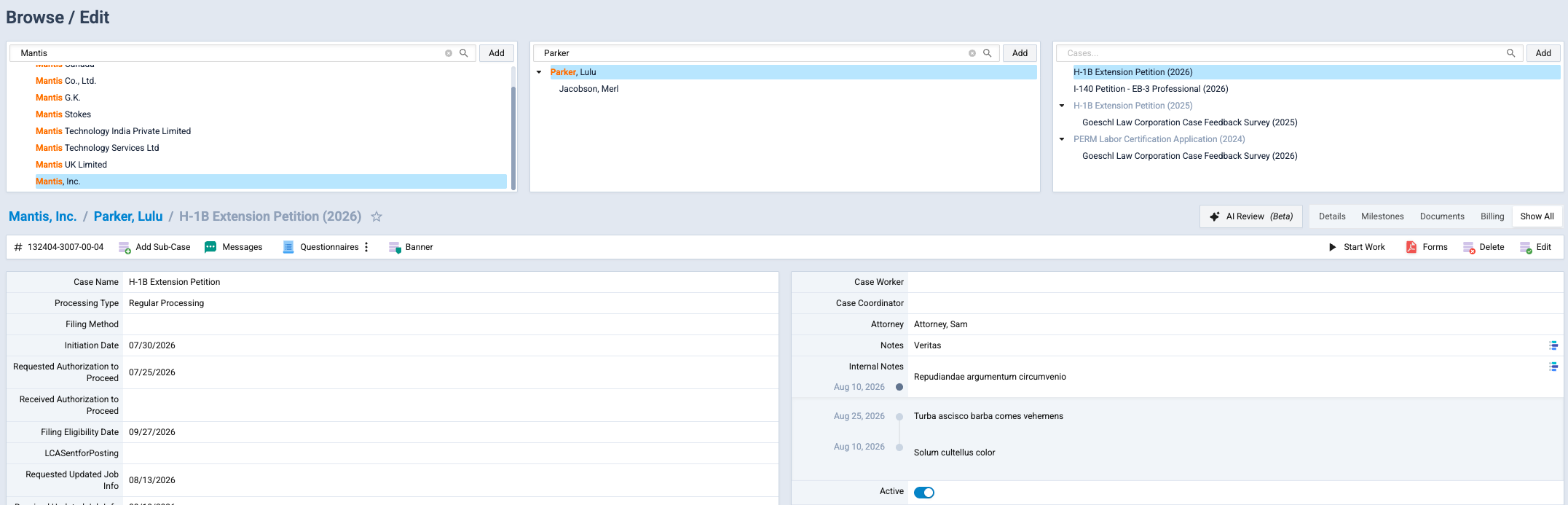
Use the shortcut button next to the record heading to save the company, person or case you're on to your shortcuts, so you can come back to it in one click.
If you open a link to a record you can't access, you see You don't have access to this record. It may belong to a company you can't access, or it may have been removed. Ask your firm's administrator if you think you should have access.
Read a record
When you open a record, its details appear below the columns, laid out in the panels and fields your firm set up for that type of record (its template). The fields differ from one company, matter or case type to another.
A case has extra views. Use the switch at the top right of the case to choose:
- Details: the case fields.
- Milestones: the case's progress checklist and history (see Milestones and status). Shown only when the case type has milestones.
- Documents: the case's files (see Case documents).
- Billing: fees and billing items, if your role includes billing (see Invoices).
- Show All: everything above on one page.
The action bar above the details holds the actions for the record you're on, for example Edit, Messages, Questionnaires, Templates and Forms on a case. Which actions you see depends on your role.
Edit a record
- Open the company, person or case.
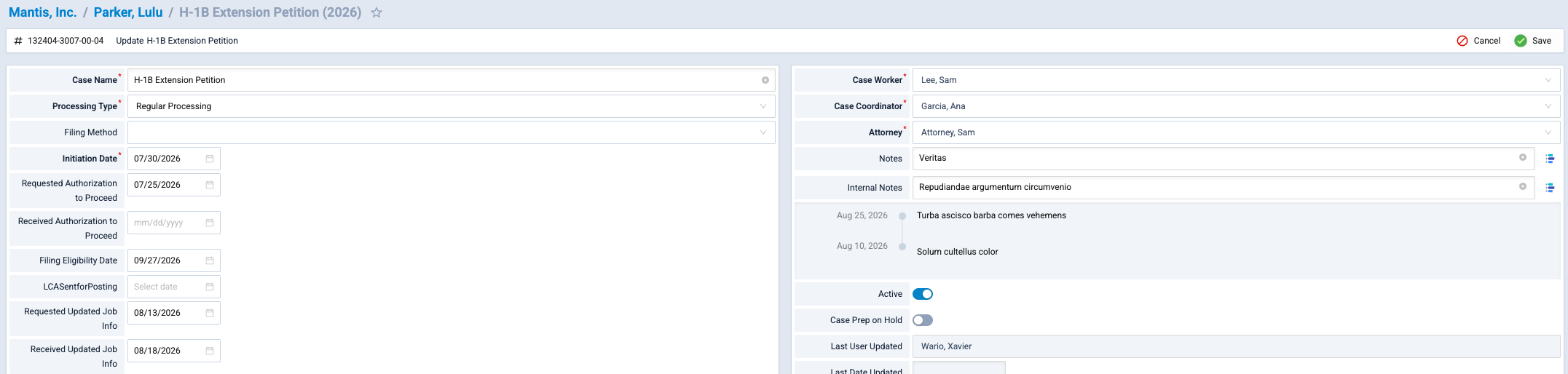
- Click Edit in the action bar.
- Change the fields you need. Some templates show each top-level section as a tab; others show all panels on one page.
- Click Save, or Cancel to leave without saving.
After a successful save you see a confirmation such as "Case updated successfully".
Required fields
If a required field is empty when you save, nothing is saved and you see Please fill in all required fields and try again. with a list of the missing fields. Click a field in the list to jump straight to it.
If someone else saved first
If another person changed the same record after you opened it, your save is stopped and Agnos tells you which fields they changed. Your edits stay in the form: copy anything you need, then reload the page to see their changes and enter yours again.
If you switch to another record while a dialog is open, you may see "The selected record changed. Close this and try again." Close the dialog and start the action again from the record you want.
Field history
Some fields keep a history of their values. When you're editing a record, those fields show a small Timeline button; click it to see earlier values, who entered them and when.
Values copied from a parent record
A panel can take its values from a record above it, for example a person's address panel copying the company's address, or a case copying details from its matter. Your firm decides which panels can do this in the template.
When a panel can copy, its header has a dropdown that shows where the values come from:
- Not copied: the panel has its own values, and you can edit them.
- A source such as Company · Address, Principal · Address, Matter · …, Parent company · … or Parent case · …: the panel shows that record's values, and its fields are read-only here. To change them, edit the source record.
- Same as …: the panel copies another panel of the same record.
Choosing a source in the dropdown only previews its values. Nothing changes until you click Save. Choosing Not copied puts back what the panel showed when you opened the form.
When a source changes later, companies and people that copy from it are updated automatically. Cases are not, because a case may already be filed with the government:
- On the case, the panel shows a Parent changed tag. Click it to see the old and new values, then click Apply to copy the new values into the case.
- On a company, the action bar shows Cases to Sync with a count when cases are waiting. Click it to see Cases using the changed values, tick the cases to update and click Update selected cases, or click Later.
Before applying a parent change to a case that has already been filed, check whether the change means you need to correct or amend the filing.
A person who works for more than one company
Each matter belongs to one company. If a person moves to another client company, a firm user with management rights can open the person's matter and choose Management in the action bar:
- Copy/Merge Matter copies the matter, with its dependents, cases, billing, questionnaires and files, to another company (Copy To). You can pick an Existing Matter in that company to copy into, if the person is already there. The original matter is deactivated and its last name is marked "(moved to …)" with the new matter's code.
- Link to a Global Matter links a US matter and a global matter of the same person. This tab appears only when your firm's templates are set up for it.
Copy/Merge Matter moves the person: the original matter is deactivated. Check the destination company and template before you click Proceed.
Deactivate, activate and delete
- Inactive records show Activate in the action bar instead of Edit. Click it to make the record active again.
- Delete asks for a reason before removing the record.
- Seeing deactivated cases depends on your role. If you can't find a closed case, ask your administrator.
Related
Last updated Nov 17, 2026
Still need help?
- Ask your firm's Agnos administrator. They manage users, permissions, forms and settings for your firm and can fix most access problems right away.
- Use Help in Agnos. Open your profile menu and choose Help to email your firm's support contact.
- Contact Agnos support at support@agnos.global. Say which page you were on and what you expected to happen. Never send passwords, and send client documents only through Agnos itself.