Recruitment portal
How a client's recruiters and HR team request sponsorship assessments, case initiations and work requests, and how hiring managers follow progress.
The Recruitment portal is where a client's recruiters and HR staff send immigration requests to your firm, and where hiring managers follow their candidates' progress. Your attorneys receive the requests in Agnos as matters, cases and questionnaires.
Who uses it
- Recruiters create and manage requests for candidates and employees. They need the Recruiter permission on their role.
- Hiring managers see a read-only board of the candidates assigned to them. They need the Hiring Manager permission.
Recruiters who don't use the rest of Agnos go straight to the Recruitment portal when they sign in. If something is missing, ask your firm's administrator (see Users and roles).
The candidate list
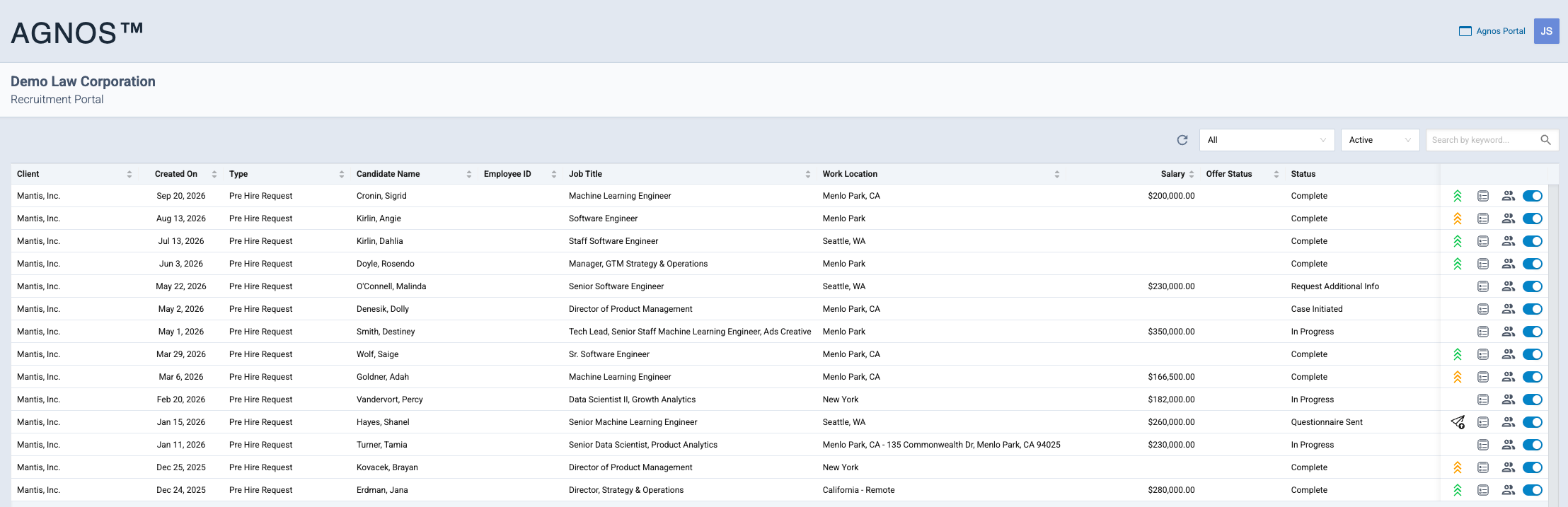
Recruiters see a table of every candidate request. From the toolbar you can:
- Create a request with the buttons for the request types enabled on your role.
- Filter by request type (Pre-Hire Request, Case Initiation Request, Work Request or All) and by Active or Inactive.
- Search with Search by keyword... across names, emails, employee IDs, job titles, work locations, recruiters and companies.
- Refresh the list, or start the guided tour to learn the page.
Click a row to open the full request.
Request types
Pre-Hire Assessment
Use this before making an offer, to find out whether sponsoring the candidate is feasible.
- Click Add Pre-Hire Assessment.
- Choose the company and enter the candidate's details, job details and salary.
- Attach documents and assign hiring managers if needed.
- Submit.
Agnos creates the candidate's matter and case and emails the candidate a questionnaire. When the candidate submits it, your attorney reviews it and records the assessment; the recruiter is notified when it is complete.
Case Initiation Request
Use this to start a formal immigration case for someone who has accepted an offer: an external hire, a global transfer, an intern moving to full time, a rehire, or a pre-certified LCA.
- Click Case Initiation Request (New Hire) and read the reminder. For new hires, a pre-hire assessment first is recommended.
- Click Proceed, choose the request type and fill in the details.
- Submit.
Work Request
Use this for an extension, amendment or other change for an employee who already has a matter.
- Click Work Request for Existing Matters.
- Find and select the employee's matter.
- Enter the current and requested details and submit.
Work with a request
Each row has action icons:
- Open the request to see its details, assessment results and documents. Once the assessment is complete, the request becomes read-only.
- Resend the questionnaire when the status is Questionnaire Sent, for example if the candidate lost the email. This sends a new link.
- Manage Hiring Managers to choose who can follow this candidate.
- Active / Inactive to deactivate or reactivate the request. Notifications go out automatically.
Record the offer decision
After the assessment is complete, open the request and choose:
- Offer Accepted — opens a page to confirm the start date, salary, work location and any corrections, and to upload the offer letter.
- Offer is Currently Pending — marks the offer as pending.
- We will not be moving forward with this candidate — marks the offer as rejected.
The same choices appear as buttons in the emails recruiters receive, so they can respond without signing in first. Each button opens a short confirmation page ending with Thank you for confirming!
Request status
| Status | Meaning |
|---|---|
| In Progress | The request is being processed. |
| Questionnaire Sent | Waiting for the candidate to fill in the questionnaire. |
| Questionnaire Submitted | The candidate submitted the questionnaire. |
| Questionnaire Completed | The questionnaire has been reviewed. |
| Request Additional Info | The attorney needs more information. |
| Work Request Sent | The work request form was sent. |
| Case Initiated | The immigration case has been opened. |
| Complete | The assessment or request is finished. |
| Canceled | The request was canceled. |
Hiring managers
- Open Manage Hiring Managers on a candidate.
- Pick existing hiring managers from the list, or create a new one with their name, email and optional phone.
- Click Create & Send Access to create the account and email them sign-in instructions, or save to assign existing users.
Hiring managers see a board of cards, one per assigned candidate, with each case's milestone timeline. They can search and filter by request type and status, but can't change anything. Which milestones they see depends on their role.
Greenhouse integration
If your firm has connected a client's Greenhouse account, candidates who reach the configured stage in Greenhouse are brought into the Recruitment portal automatically. The recruiter receives an email asking whether the candidate needs immigration sponsorship:
- Yes sends the Pre-Hire Assessment questionnaire to the candidate.
- No records the answer; nothing is sent.
Either way, a confirmation page opens and the recruiter can close the window.
For administrators
- Give recruiters the Recruiter permission and hiring managers the Hiring Manager permission in Users and roles.
- On a recruiter's role, set up the Recruiter Portal Assessments: for each company, the case, matter and questionnaire templates for each request type, and which notifications are sent.
- Greenhouse connections for each client are set on the Greenhouse tab in Admin › Settings (see Settings).
Related
Last updated Nov 17, 2026
Still need help?
- Ask your firm's Agnos administrator. They manage users, permissions, forms and settings for your firm and can fix most access problems right away.
- Use Help in Agnos. Open your profile menu and choose Help to email your firm's support contact.
- Contact Agnos support at support@agnos.global. Say which page you were on and what you expected to happen. Never send passwords, and send client documents only through Agnos itself.